Table of Contents
Avast is one of the best antivirus software globally. Millions of people swear by this console owing to its varied features and good overall protection. One of the primary attributes of Avast is auto-update, which ensures thorough safety, especially in times of lurking danger. But some times Avast user’s faces Avast Not Updating Virus Definitions issues. This article will help to fix this issues.
Nonetheless, Avast customers at times face an issue where the software doesn’t update its virus parameters, making their device susceptible to new dangers. It is important to solve the Avast Not Updating Virus Definition to ensure your system is protected against viruses and malware. This guide will help you fix this issue, so let’s start.
Avast Virus Definition Problem
Before finding ways to fix Avast virus definition not updating issue, it is integral to understand what is the meaning of Avast Virus Definition or what results in this problem.
Every antivirus has a database containing the definition of viruses and malware against which they protect. Even Avast uses this mechanism. It needs to update itself at regular intervals so that it can equip its database to ward off any viruses or malware.
Along with the update turned off, compatibility issues can also result in this issue. No matter whatever the cause of the Avast Not Updating Virus Definitions issue, we are here to present you with solutions.
How to Fix Avast Not Updating Virus Definitions
Solution 1: Inspect the internet connection
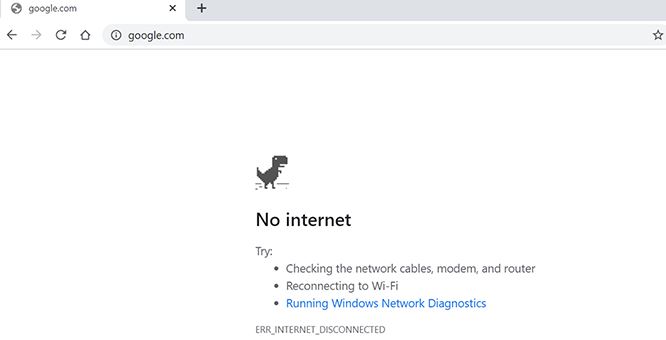
The first step is to ensure you have good connectivity. To check your internet, simply open a web browser and try navigating to a webpage. If you can access any webpage without any problem, it means your internet is working fine. If not, fix your internet connection.
Solution 2: Manually update Avast Virus Definitions
Avast permits you to install the updates of virus definitions manually as well as automatically. If the automatic feature is not working, you can manually update it. For this,
- Access Avast on your device
- Now click the menu option
- Then choose settings, followed by general and update
- Now, click check for Updates followed by Virus definitions
- Wait till it finds any updates
- Once done, click the check for updates option to update it
Solution 3: Repair Avast Software
- Open Avast on your system
- Now click menu, settings, general, and lastly, troubleshooting
- Scroll down and find still having problems option
- Tap on it and hit the repair icon
- Then click yes and restart the system once the process is complete
Solution 4: Disable the Windows Firewall
To disable the windows firewall, follow these steps:
- Navigate to the control panel on your computer followed by system and security
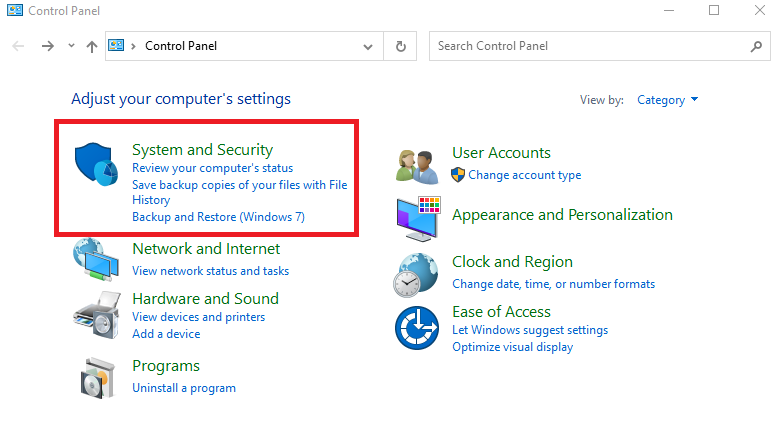
- Now select windows defender firewall
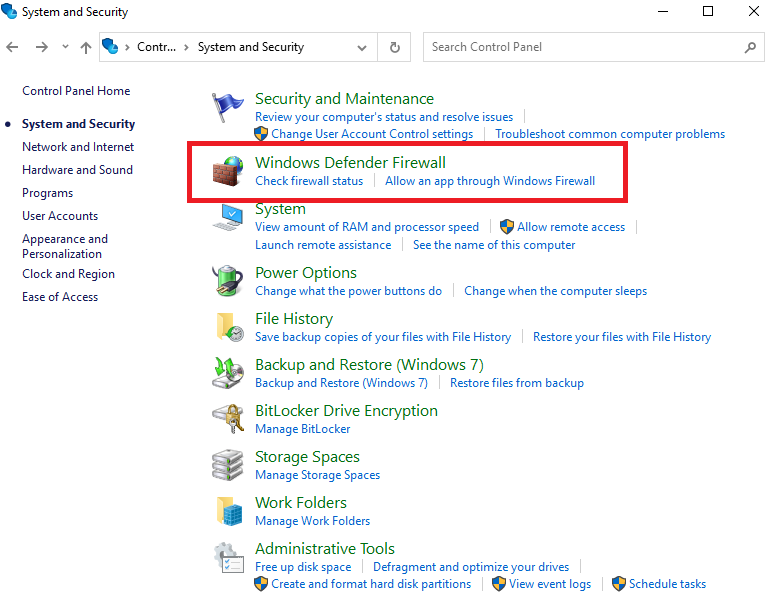
- Then click Turn Windows Defender Firewall on or off
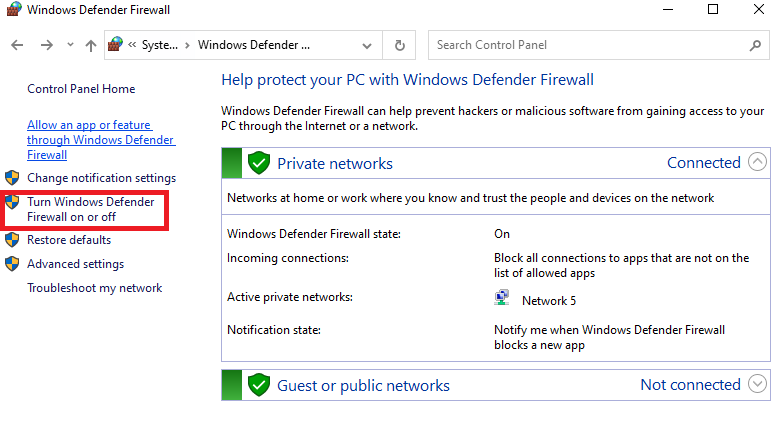
- Now select the Turn off Windows Defender Firewall option in private as well as public networks and tap OK
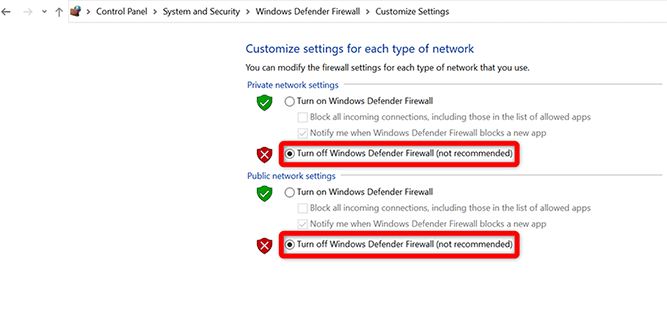
- Once done, access Avast and manually update the virus definitions on Avast
Solution 5: Fix the Date and Time on Your Ddevice
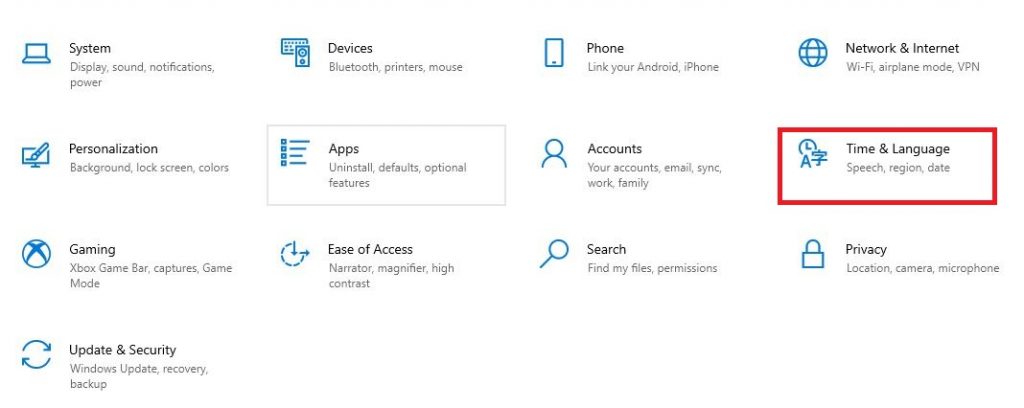
- Open the settings app on your computer
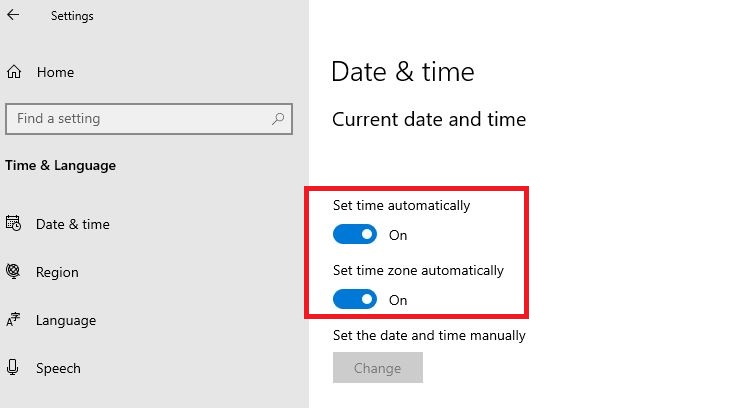
- Choose Time & Language followed by Date & Time
- Now select Set time automatically and Set time zone automatically
Solution 6: Reset Avast
- Access Avast and choose Menu
- Select settings > General > Troubleshooting
- Now scroll down and choose reset all settings
- When the prompt appears, tap yes
Solution 7: Reinstall Avast
If the above solutions don’t work, you can try to Uninstall Avast Antivirus:
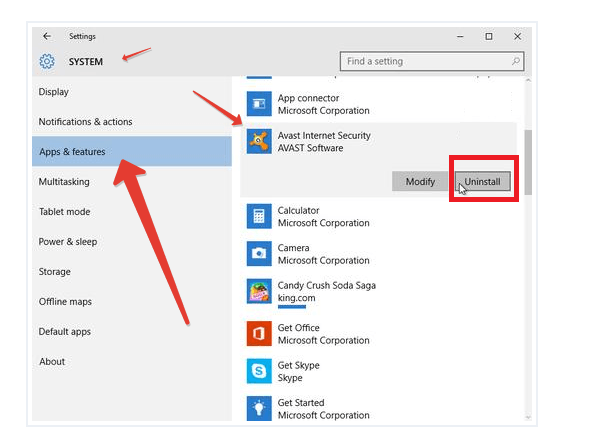
- Open Control Panel and select Program and Features
- Select Avast Antivirus
- Now choose Uninstall
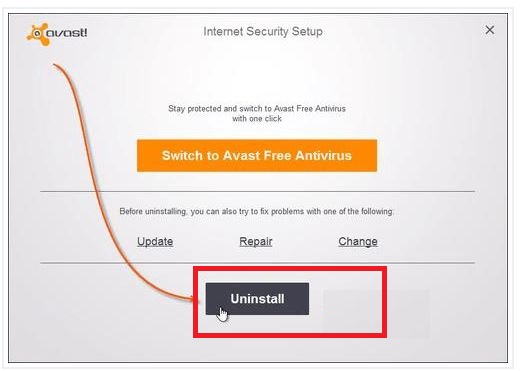
- In the prompt that follows, again click uninstall
- Restart your computer
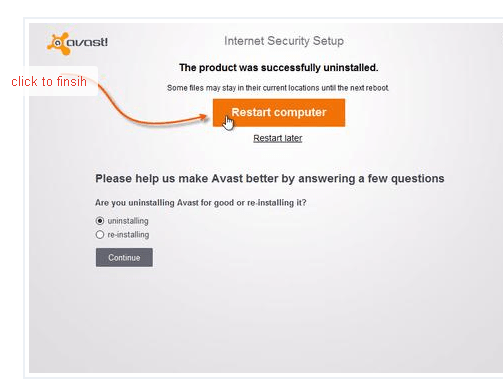
- Then reinstall Avast and see if that fixes the issue
So here are the solutions to fix the virus definitions problem on Avast. In case you are still encountering issues, you can simply contact avast customer support to get your issues fixed. We hope you find this article useful!
Read Also:
Avast not Opening Issue on Windows
How to Fix Avast Runtime Error Code 42102
Fix Avast Run Time Error Code 1068
Cancel Automatic Renewal of the Avast Subscription
Avast antivirus activation error code 305
How to Renew Avast Free Antivirus
Complete Guide to Fix Avast “UI Failed to Load” Error
Frequently Ask Questions
- Access Avast on your device
- Now click the menu option
- Then choose settings, followed by general and update
- Now, click check for Updates followed by Virus definitions
- Wait till it finds any updates
- Once done, click the check for updates option to update it
- Avast
- Norton
- McAfee
- Bitdefender
- Avira
- Kaspersky
- ESET
- Malwarebytes, to name a few.